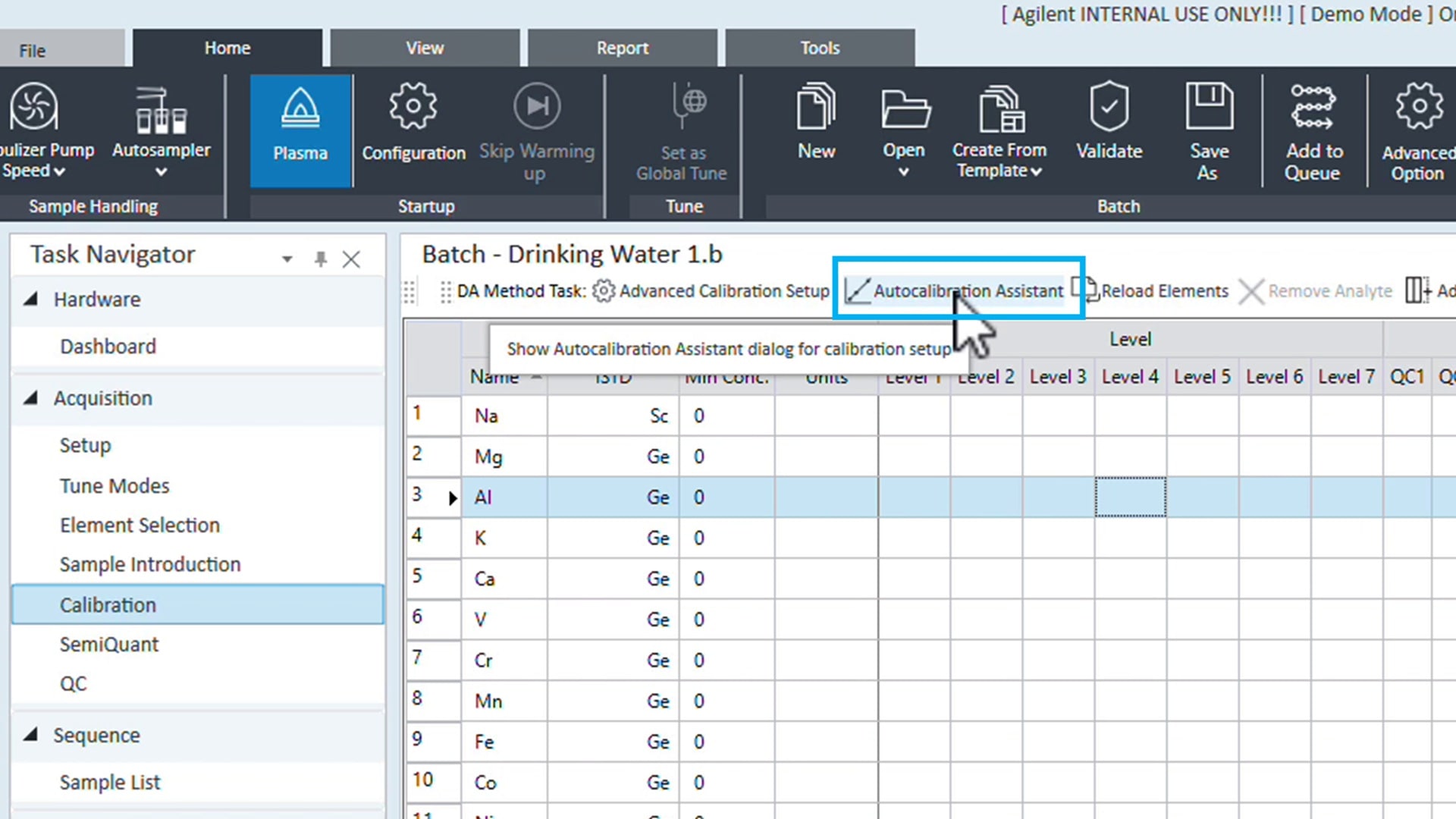
The Autocalibration Assistant was introduced in Agilent ICP-MS MassHunter 5.3 and is designed to make setting up calibrations even easier. It is available in any quantitative batch method under the Calibration menu in the method Task Navigator. Figure 1 displays the location of the Autocalibration Assistant option.
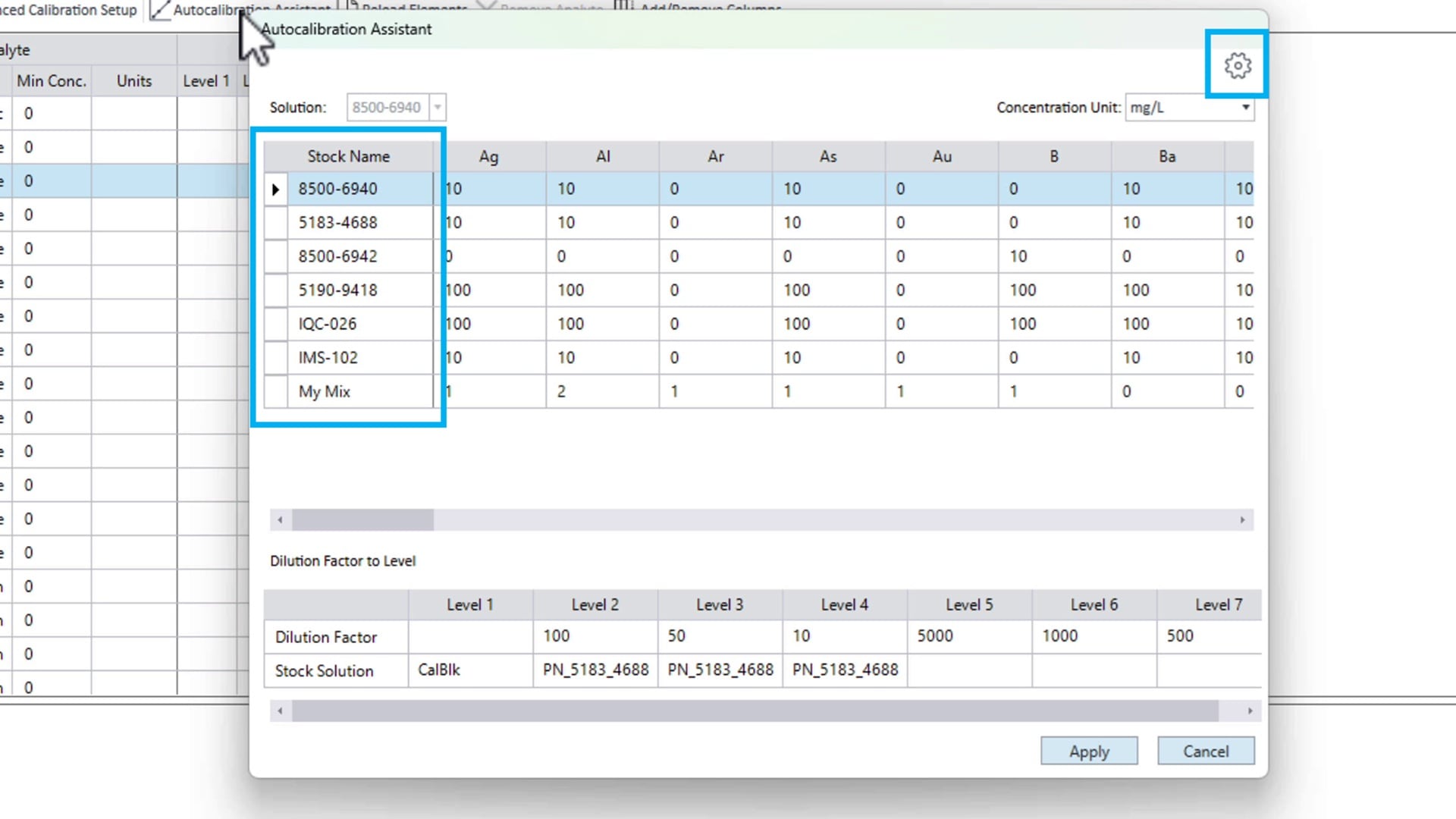
Once activated, the Autocalibration Assistant window appears. By default, it shows all calibration solutions stored in its library. Figure 2 displays the assistant after it has been configured to hide unused stock solutions and show custom solutions. The first column lists the names of the available stocks, and users can customize the stock standard library by clicking the configure icon located to the right of the dialog.
Configuring the Autocalibration Assistant
To customize the Autocalibration Assistant's default stock library, simply press the configure button, as shown in Figure 2. The library displays all available stock standard solutions, including those that have been hidden, as shown in Figure 3.
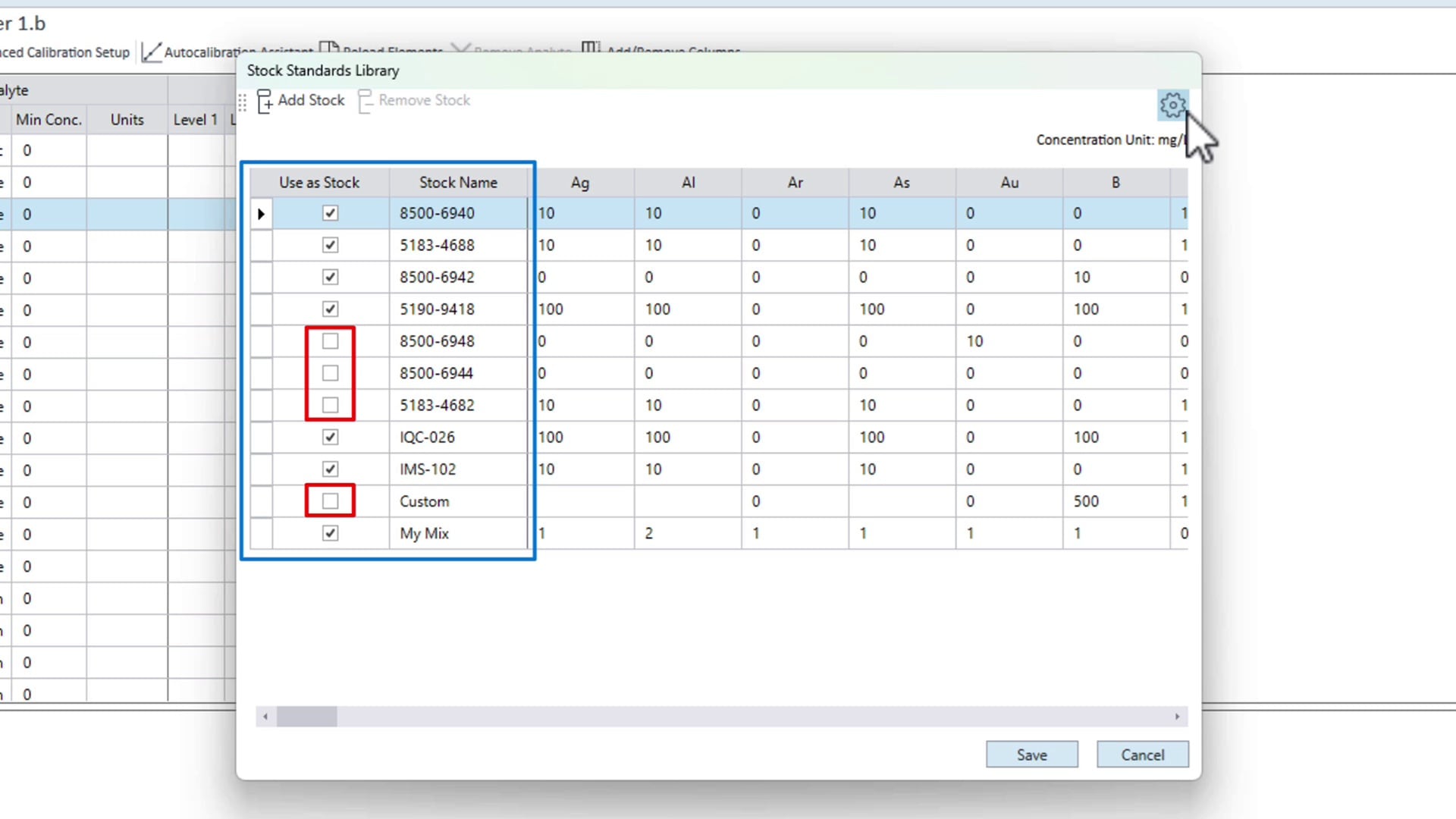
To add new stock solutions, click the ′Add Stock′ button at the top of the dialog. Unused custom solutions can be deleted with the ′Remove Stock′ button. Whenever you use ′Add Stock,′ a new entry appears at the bottom of the library. Double-click the name to edit it and assign a more meaningful label (see Figure 4).
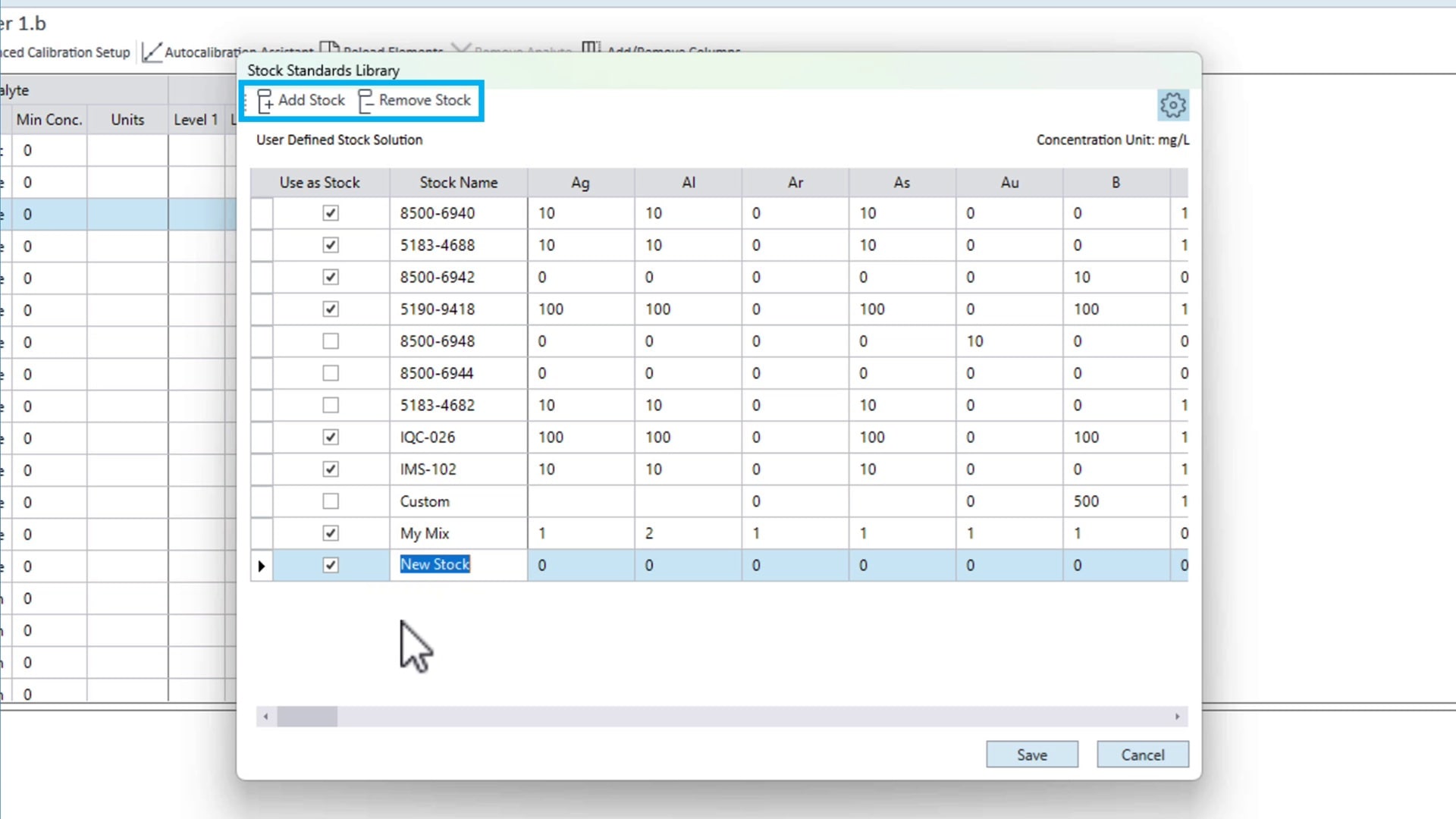
To enter element concentrations, scroll across the table and enter the concentration into each cell under the appropriate element column. Remember to observe the unit—the library uses mg/L (ppm) as the stock concentration. Press ′Save′ to commit the changes.
Creating a calibration using the Autocalibration Assistant
Using the assistant to create a calibration table is easy: either select the stock from the top list or from the dropdown menu in the lower table labeled 'Dilution Factor to Level' (see Figure 5). This selection connects the calibration stock solutions and dilution factors to the respective calibration levels in the final method. Additionally, you can select which level will serve as the calibration blank (referred to as 'CalBlk' in the table).
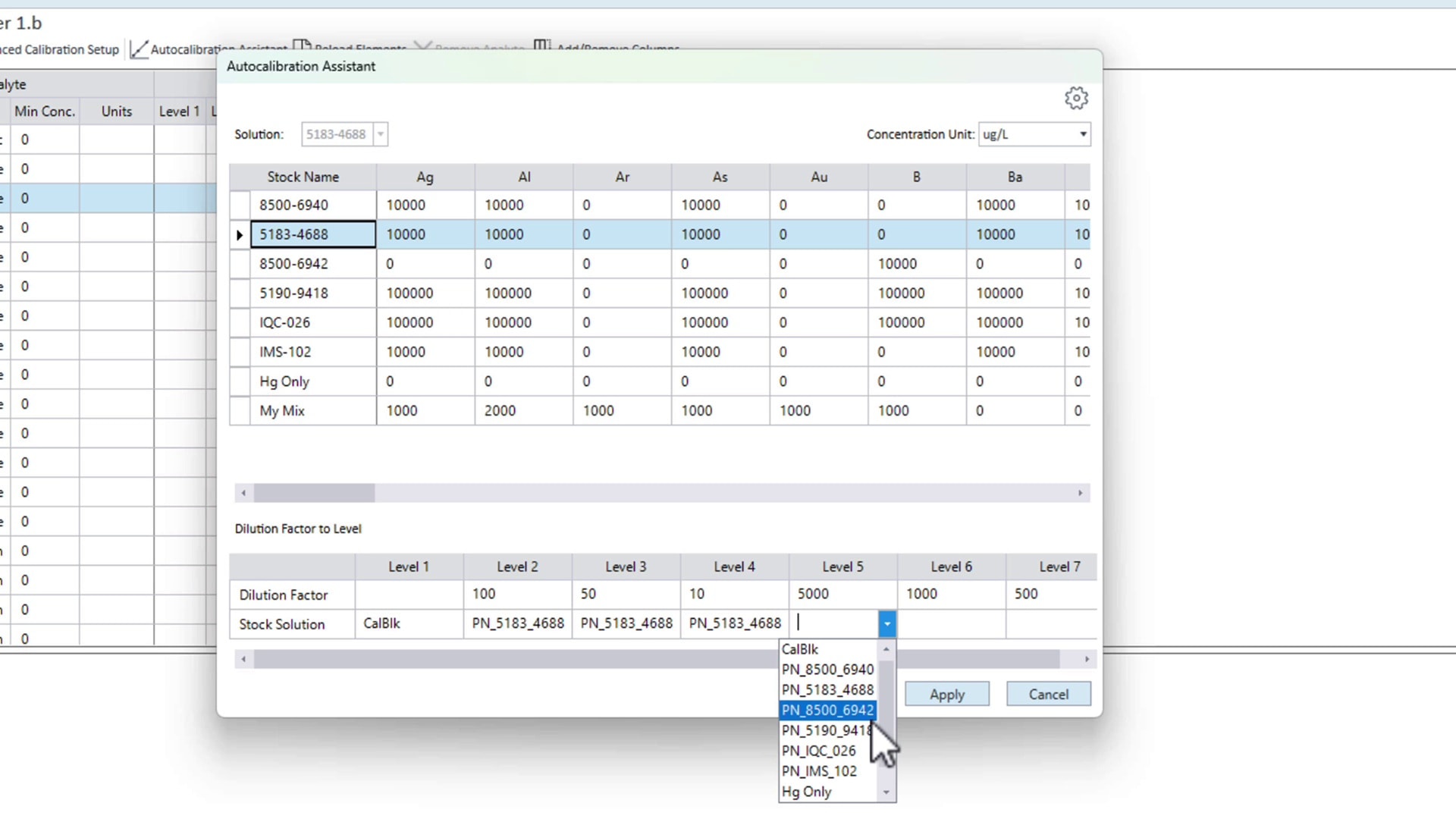
You can select concentration units in the assistant, and it will calculate the correct values regardless of the units used in the stock solutions. Click 'Apply,' and the assistant will automatically populate the calibration concentration levels in the method. If you are using the Advanced Dilution System 2 (ADS 2), the auto-dilution factors are automatically added to the sample list, allowing the ADS 2 to generate calibration standards without extra input.
The Autocalibration Assistant is just one of several useful time-saving and ease-of-use features in ICP-MS MassHunter, designed to alleviate the stress of routine operation.
DE- 011027