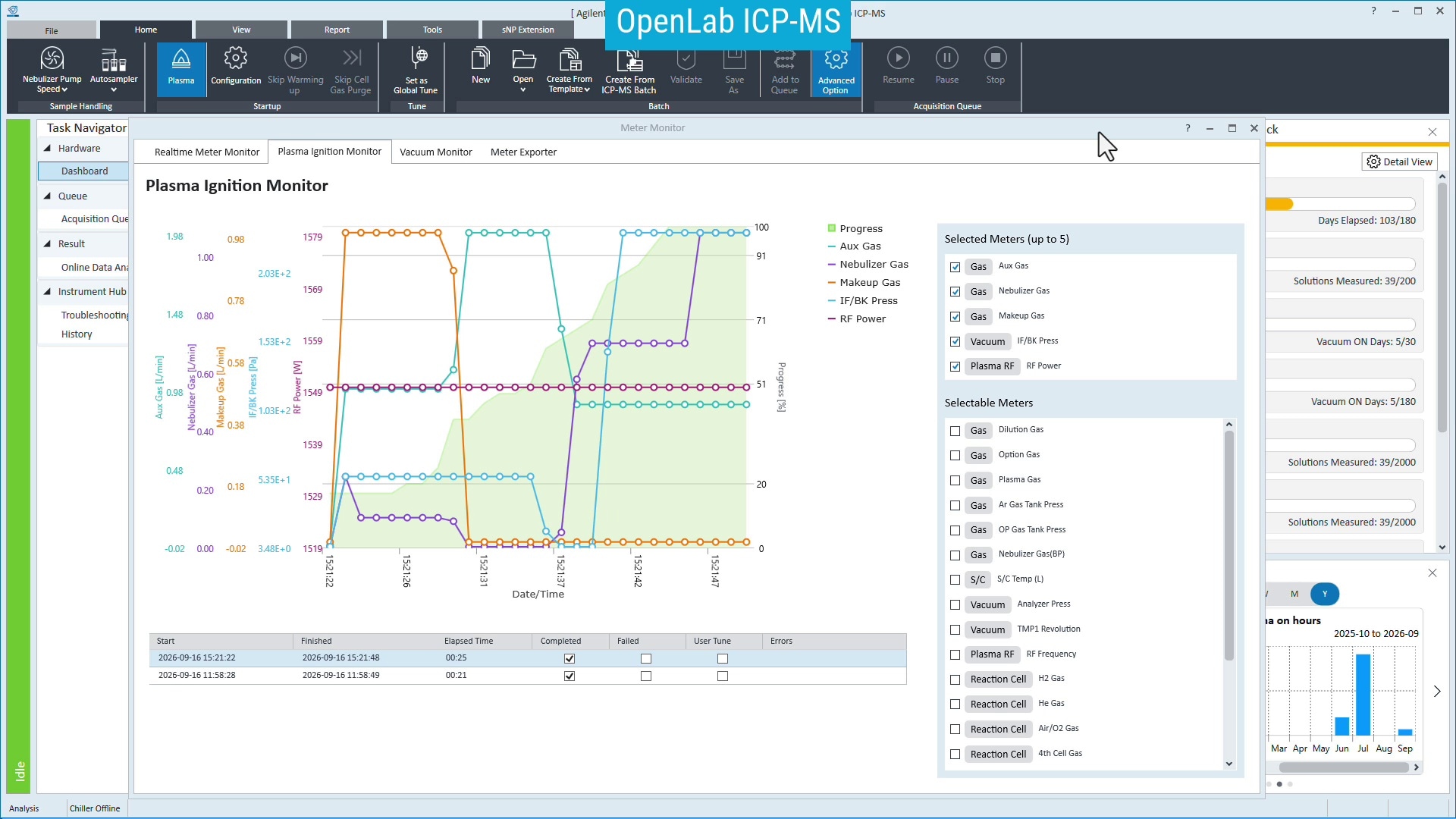
The Meter Monitor function in OpenLab ICP-MS enables visual tracking and recording of several parameters to help diagnose potential issues, such as low gas pressure or a leaking nebulizer connection. A separate tab can be selected to graphically display meters and plasma startup parameters and to record all instrument meters to a file. This file can be archived or sent to Agilent support specialists if the instrument requires fault diagnosis. Figure 3 shows an example of the Plasma Ignition Monitor, which indicates whether ignition was successful by recording relevant parameters. The plasma ignition results are tabulated at the bottom of the screen.
Enhancing an acquisition batch using advanced features
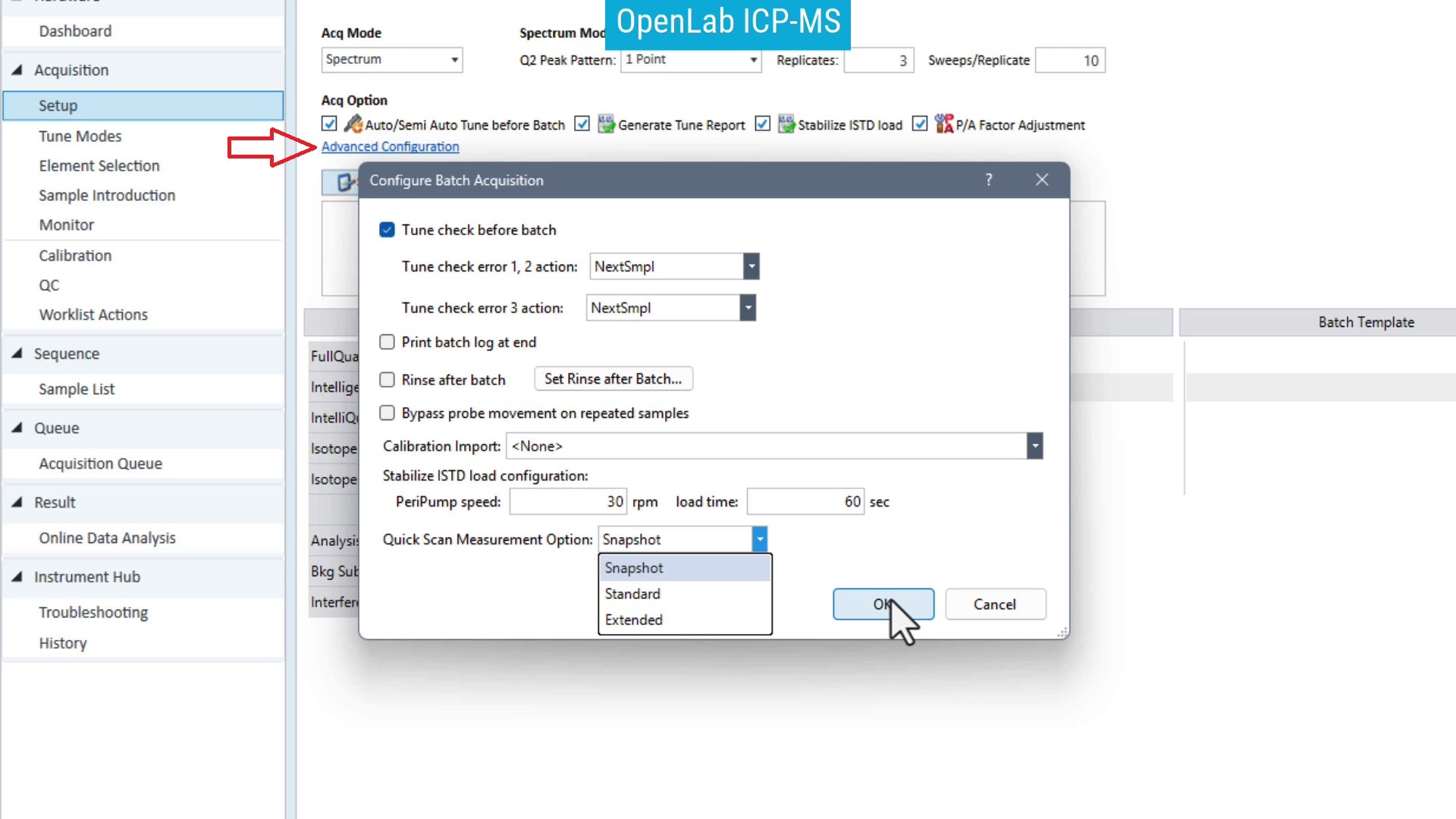
There is an option in the sample acquisition batch called Advanced Configuration. Clicking on the option opens a new dialog (Figure 4) and provides access to advanced settings, including:
- Tune check before batch: when a tune report is generated at the beginning of a batch, this option will check the report against target values for sensitivity, backgrounds, oxides, and doubly charged ions. The targets can be adjusted in ICP-MS MassHunter or OpenLab ICP-MS settings, and options to abort the sequence are available if the check fails.
- Print batch log at end: this will print a summary of the samples measured and any QC actions taken.
- Rinse after batch: this option will run a separate, additional rinse program after the batch finishes. Useful if a different rinse is desired, or just to ensure the instrument is clean for the next batch. The rinse program can be configured using the Set rinse after batch… button.
- Bypass probe movement on repeated samples: when enabled, samples that are successively repeated from the same sample vial will not run the rinse and/or uptake program (the uptake program will run for the first repeat only). The probe does not move from the sample, and the repeat sample measurement starts immediately. The rinse program will run after the final measurement has finished.
- Calibration import: a calibration can be loaded from a previous acquisition batch by selecting the batch from the dropdown menu.
- Stabilize internal standard (ISTD) load configuration [9500 and OpenLab ICP-MS only]: allows a separate peristaltic pump speed and time when the internal standard selection valve switches. This valve is available only on the Agilent 9500 ICP-QQQ and enables automated switching between a blank and an ISTD solution during autotuning.
- Quick Scan Measurement Option [OpenLab ICP-MS only]: this feature is available for all supported ICP-MS systems and allows the selection of one of three timing options for the Quick Scan feature. Snapshot takes 2 s, Standard takes 10 s, and Extended takes 30 s. The Extended timing option is intended to enhance IntelliQuant data quality when a longer scan time is used. The Snapshot option is the default setting.
Additional features
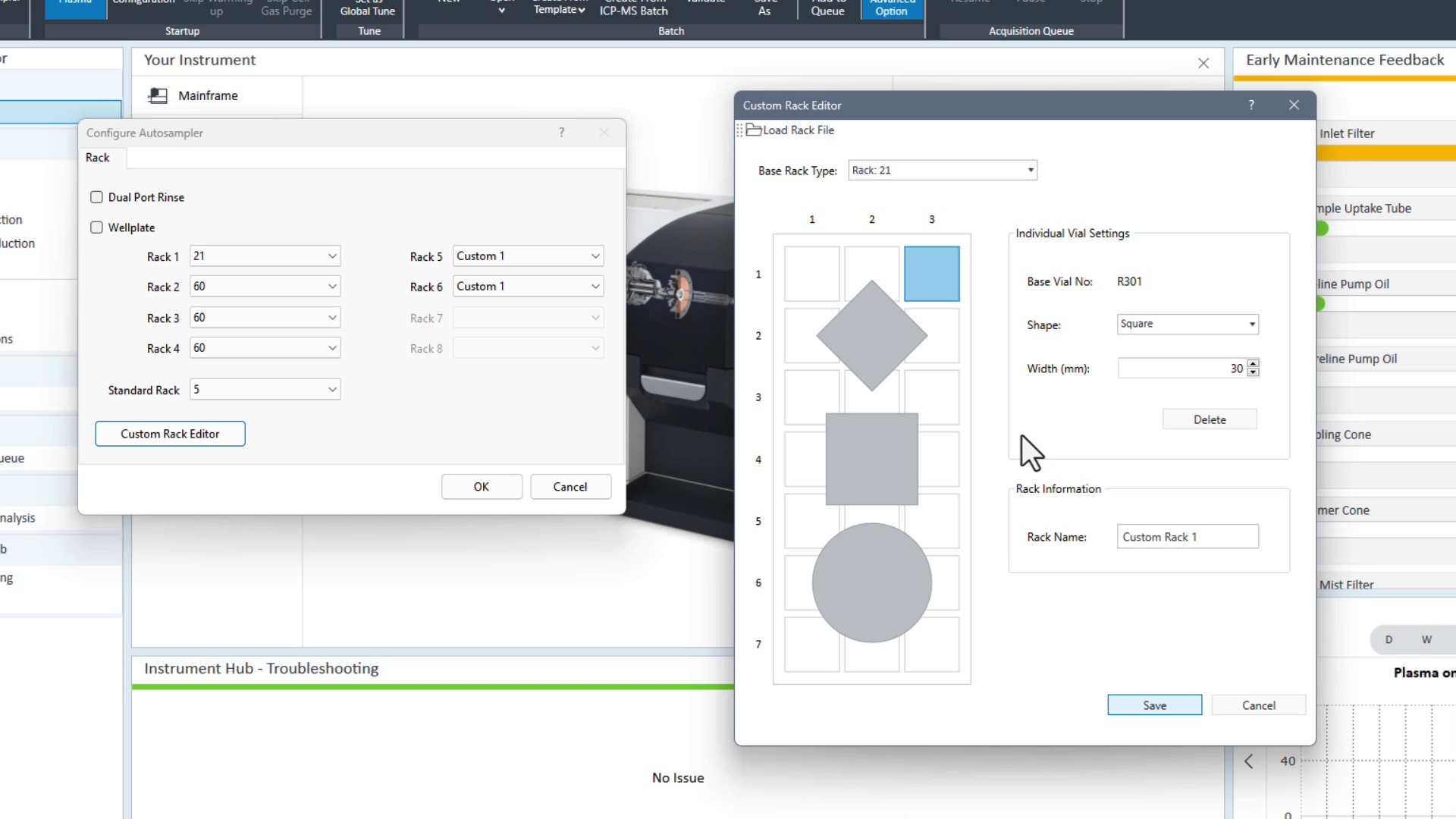
Quick access to the autosampler settings and the Custom Rack Editor is available from the Autosampler dropdown menu. Rack configurations can be quickly confirmed or changed, and custom-made racks can be configured using a standard rack as a template. Size, position, and shape can be easily selected and positioned to suit the custom rack configuration. Figure 5 shows the autosampler dialog with the custom rack editor.
The video associated with this article shows the Instrument Status Viewer and batch Archive functions. The Instrument Status Viewer opens a small, always-on-top window that displays essential information about the instrument and the current batch, useful when only one monitor is attached to the control PC. The Archive function, found in the Tools menu, compresses the currently open batch into a .zip file, making it easy to transport, archive, or email the batch. The original batch is not changed or deleted when it is archived. The tool also allows a previously archived batch to be unzipped. Take a look at the video to see these options in action.