Refine Results
- Products
-
Product Category
- Services
- Content Type
-
Content Type
- Analysis Platform
-
Analysis Platform
- Language
-
Language
With the latest updates and revisions, ensure your laboratory software remains current and secure.
NovoExpress software enables researchers to perform efficient sample acquisition and analysis.
Fast and accurate analysis of GH and CGH+SNP data from constitutional and hematological samples
Superior instrument control, data acquisition and analysis with the 4150 and the 4200 TapeStation systems.
Target isotopologue LC/QTOF data extraction, quantitative flux analysis and pathway visualization software
Virtualize MicroLab 5.8 software
-
Has anyone successfully virtualized MicroLab 5.8 (VMware, Hyper-V) to avoid this problem? The idea would be to run the software on a virtual machine so we can move it to new hardware without losing the license. Is this feasible? Any known limitations when controlling FTIR instruments through a VM?
Legacy software
Legacy software
-
i purchased an agilent 6410a without the computer. i didn't realize at the time how big that mistake was. the hplc I purchased to connect it to has chemstation 3.01 with all the software discs. Unfortunately I believe I still will need masshunter 3.01 or older to run the 6410a. Does anyone know where I can purchase either a software itself or a computer that has the software on it
7850 ICP-MS MassHunter software manual
-
I am working at the Iron Laboratories. Our lab uses 7850 ICP-MS MassHunter software. When the software opened, typically Task Navigator column has more selectable lists, especially it had tuning list. But it disappeared from the list. If you let me know how to restore the list, I will appreciate much. In addition, if I can purchase the software manual it is very good. Thanks Manhoe
Software - Supported Method Development - The Scanview Application
-
Updated Scanview Application Database and Program – Program Version 2025, Database Version 2025-05 [Download] Norbert Reuter*, Ingrid van der Meer, Agilent Technologies, Middelburg, The Netherlands Important Notification Due to changes of the agilent.com web server Scanview can no longer show application notes internally, but it is possible to use your installed system PDF viewer. To do so, you need to edit the scanview.ini file in the installation directory. The content has a [PROGRAM] section in which the parameter PDF=internal can be found, change this to PDF=external, save the file and restart Scanview. Scanview.ini: [PROGRAM] PDF=internal ---> PDF=external Introduction The new Scanview Application - 2025 Version is an application database that contains full method descriptions and literature references for gas and liquid chromatographical analyses, sample preparation, optical spectroscopy applications (UV, IR, CE, ICP-MS/ICP-OES and AA) and chemical cleanup and reaction monitoring. More than 6,200 application notes are contained in the Scanview Application database. The user-friendly front-end allows you to search/filter on a variety of categories – the top five categories are the most used. Download and Installation Scanview is delivered as a single ZIP file, ScanviewPortable.zip. The ZIP file contains the complete application database in a sub-directory named ScanviewPortable. Scanview is a so-called portable application, meaning you do not need to install it, just copy the ScanviewPortable folder to a place on your SSD or HDD and run Scanview.exe. The full installation requires approximately 50 MB free disk space without preview files and 165 MB with them. The program is compatible with Microsoft Windows XP, VISTA, 7, 8, 10 and 11. Note: You cannot run Scanview directly from the ZIP file as it will not find its database and components and give you an error message that the database is not in its expected location. This message will look like the example in Figure 1 and is a clear indication that the ZIP file was not extracted to the local drive. Figure 1 Users of previous versions of Scanview can still use the older version in parallel as the portable version does not overwrite any older files. The difference to Scanview 2020 is that all application notes are in Agilent’s Online Technical Library and are downloaded the moment you want to see them. The change was made because all the application notes exceed 2 GB data and downloading all the files could be an issue, but this change guarantees that you will always see the newest version of an application note. Launch the Program After starting the program, the splash screen shows the version number. It disappears after a few seconds and then the Filter Wizard - Filter dialog appears as shown in Figure 2 . Note: If you check the option to never see the Intro screen again, the Filter Wizard - Filter dialog appears first instead. From the Filter Wizard – Filter dialog you can access all possible Categories you can filter content on. The list of categories is sorted by access frequency, for example, categories that are searched most often. Most people filter on Components names first. Click the category you want to search, for example Components, click Next and then provide the search filter criteria. Figure 2 Select the Components for Your Search Filter Information about Search Modes (Refer to Figure 3 ) If Starts With... is used, every character you type is extended to the closest name in the database. Contains... gives you the option to search for two text blocks within all names. Sounds Like... takes care of unknown spellings or the typical problems with T vs. TH, P vs. PH or B vs. P. Typically, the official IUPAC name of a component and synonym names are in the database. For example, the IUPAC name for lactic acid is 2-Hydroxypropanoic acid. In Scanview, prefixes are placed behind the name, so you could search for this component by either “lactic acid” or "propanoic acid 2-hydroxy". It is also possible to add another component or a list of them, in the example shown above we also added acetic acid. Figure 3 The component of interest is then chosen from the result list (left column) and transferred to the select box on the right. The double arrow transfers all components from the left to the right box. After choosing the components there are two ways to continue: Next lets you choose another category to filter, for example to filter for lactic acid done with GC or to add a second component. Finish shows you the results of your request (in this case a search for lactic acid and acetic acid). In this example we clicked Finish to show the results of a search for lactic acid and acetic acid. Once you add all the search categories/criteria and click Finish, the List of Applications window opens showing all application notes that contain at least one of the components in your query/filter. The number in the hits column indicates how many of the components are present in the application note (see Figure 4 ). Figure 4 In this example, Scanview found 78 applications and the top 14 entries contain both components (only a subset of the results is shown in Figure 4). When you select an entry, you will see the detailed information as shown in Figure 5 . Figure 5 The Reference info tab (not displayed) includes title, author and, if available, bibliographic data. If this reference comes from a scientific journal, you also will find a small globe button on the right site of the citation. Clicking it will bring you to the publisher’s website, where you might be able to buy this article. Due to international copyright laws Agilent cannot supply these articles to the user. The Applications Details tab (shown above in Figure 5 ) includes: View product information shows all available columns with the mentioned phase, for example all CP-Sil 5 CB columns. View Application Note opens the application PDF-file with additional method parameters. Preview (example in Figure 6 shown below) shows a small review of the main chromatogram of the application note if available and installed. Figure 6 Due to the filters selected at the beginning, all analytical techniques are included in the result list. If you only want to have, for example, HPLC application notes, you can click Edit current filter as shown in Figure 7. Figure 7 Specify a Technique used (refer to Figure 8 ). Figure 8 In this case, select LC (refer to Figure 9 ). In this example the result list would then contain 20 application notes. Figure 9 Notes: It is not possible to combine categories with the component list that do not exist (like in common Internet search engines) to get no results. Scanview shows you only those entries in categories where a match is possible. In our acid example there will only be several GC entries, HPLC and SPE. The application notes are downloaded directly from Agilent’s eLibrary. If no detailed PDF-file exists or the application note comes from literature, you will see Reference Only instead of a View Application Note button. Due to international copyright laws, we may not supply copies of literature references. You will need to contact your local library or an Internet document delivery service for the copy. For some, mainly sample preparation, application notes the Analytical Details button is enabled and you can see these details in a text box, ready to print if necessary. Distribution of the Main Analytics Techniques Included in the Scanview Application Figure 10 LC contains LC, LC/MS, UHPLC, GPC and SEC application notes. SPE contains SSLLE, SPME and Filtration application notes. Additional Resources Click Help for additional resources (refer to Figure 11 ). User Registration: Registered users receive notifications about Scanview updates A SCANVIEW Tutorial (PowerPoint based) A list of new features in What’s New? A Link to check for a new version of Scanview in the Agilent Community Figure 11 Tools - ScanviewFilterMerge [Download] When you have saved filters in Scanview and re-install/copy a new version on top of an existing version, the filters are gone, unless you have exported them. Exported filters are saved in the filters sub-directory of your ScanviewPortable installation directory. Re-importing filters into a new version normally works one by one. With ScanviewFilterMerge all saved filter files (*.svf) are merged into one file, allfilters.svf. When you import this file into Scanview all your filters are back. ScanviewFilterMerge is in the filter directory or if not yet installed, you can download it below, unzip it to the filters directory and run it by double-clicking it. This tool is no longer needed in version 2023 as there is a BACKUP ALL option in the main screen, that exports all filters into one file. See Demonstration Agilent Scanview Database Demonstration Conclusions Scanview is a versatile and valuable tool to assist you in the development of analytical methods. Contact and Questions Send comments, questions, requests to scanview@agilent.com or post them in this forum. History Date Action 2018-04-12 Original document uploaded 2018-05-15 Updated ScanviewPortable.zip attached 2018-05-24 Minor bug fix to ScanviewPortable.zip 2018-11-01 New version (2018-1101) with 400+ added application notes uploaded 2020-02-01 New version (2020-01-31) with 147 added application notes added 2020-04-17 Re-upload of ScanviewPortable.zip with a re-compiled EXE file (got some false-positive virus alarms on the old one) 2020-04-20 Added the ScanviewFilterMerge program to ScanviewPortable.zip and as a separate download to this page 2020-07-13 Microsoft Anti-Virus scanners still do give false-positive virus alerts for Scanview 2020. All versions later than 2015 give this false-positive. The solution so far is to replace the 2020 EXE with the one from 2015. The code base is the same, only the text "2020" is replaced by "2015" and the database is the most recent one 2021-08-01 Updated database version 2021 2022-06-15 Updated database version 2022 - 250+ application notes added (front end version is now 2023). This version doesn’t give any false positive virus alerts any more. 2022-10-01 Added 15 new application notes. Updated front-end with a more modern look and a preview functionality with 2800+ previews. Scanview User Guide added. PowerPoint tutorial updated. 2023-08-17 Updated database version 2023-08. 160+ application notes and 200+ preview files were added. (now more than 3000 preview are available). 2025-05-08 Updated Scanview to version 2025 and the database to version 2025-05. 120+ application notes were added. In the HELP section there is a direct link to the online download site for Certificates of Performance (Analysis, Test reports). 2026-06-23 Notification added to edit SCANVIEW.INI to use an external PDF viewer community.agilent.com/.../Scanview-License-Agreement.pdf
Intuitive sample submission and method selection software allows open access to LC and LC/MS
Get more information from your analysis by using additional HPLC software components
Enables several easy-to-use protein and oligonucleotide characterization workflows
Compare
RTCA Software Pro for xCELLigence RTCA DP, SP, MP, HT, and S16 has four modules, Basic, Immunotherapy, Compliance and Virology.
ProteoAnalyzer Security Module is designed to meet compliance requirements of FDA 21 CFR Part 11, EU Annex 11, and GxP laboratories
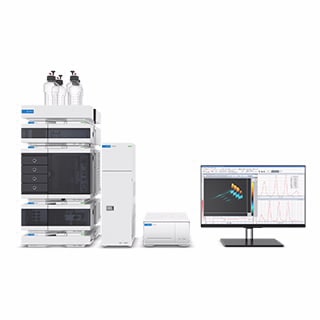
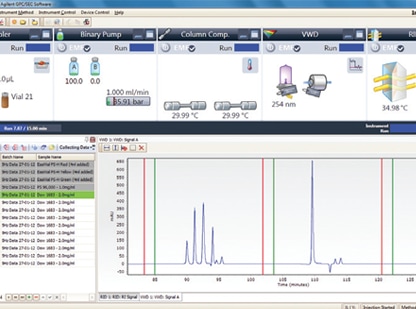
Comprehensive GPC/SEC software for GPC/SEC instrument control, data acquisition, and analysis
A comprehensive software solution for streamlined protein data acquisition and analysis for the Agilent ProteoAnalyzer system
Security module supporting FDA 21 CFR Part 11, EU Annex 11, and GxP compliance requirements.
Displays sample, results, control parameters, and signal graphics at a glance
Affordable accurate mass analysis software for your single quadrupole mass spectrometer
Non-target LC/IM-QTOF data extraction, 2-group differential analysis and compound identification software
Powerful software for liquid handling solutions
Integrates Agilent ICP-MS with chromatography instrumentation
Redefining chemical imaging software
2D-LC software for heart-cutting and comprehensive 2D-LC measurements and 2D-LC/MS data reporting